
What No-Code Workflow Automation Actually Means (and Why It Matters)
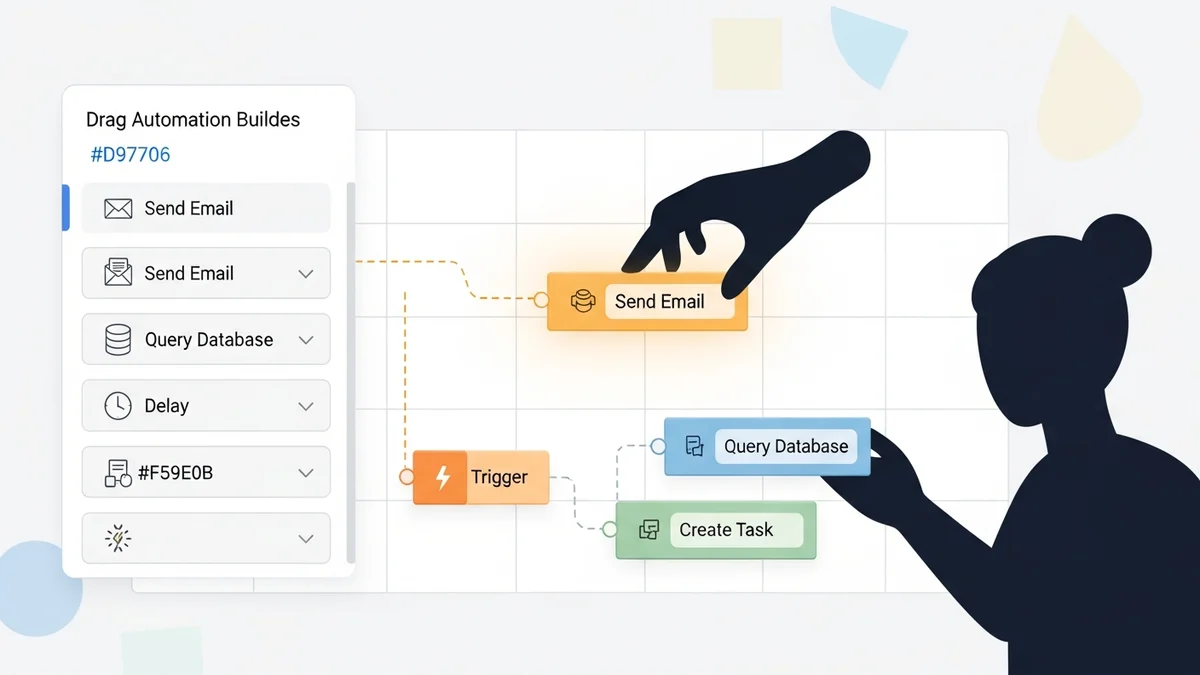
No-code workflow automation is the practice of building automated business processes using visual, drag-and-drop interfaces — no programming required. Instead of writing scripts or hiring developers, you connect your apps through a visual builder and define rules: when this happens in one tool, automatically do that in another.
The numbers make a compelling case. Organizations waste an average of 40% of their time on manual, repetitive tasks. Analysts predicted that by 2025, 70% of new enterprise applications would use no-code or low-code technologies. That shift is already happening — about 41% of employees are now building or customizing technology for their own workflows. The people who understand the business problem best are now the ones solving it.
That's the real unlock here. No-code doesn't just save developer time. It transfers ownership of the automation to the person who actually lives inside the process: the marketing manager who knows the lead follow-up sequence, the HR coordinator who understands the onboarding checklist, the ops lead who owns the reporting cycle. When those people can build their own solutions, the quality of the automation goes up — and the bottleneck of waiting on IT disappears.
The Core Building Blocks of Every No-Code Workflow
Before you open any platform, it helps to understand what every no-code automation is made of. The complexity varies wildly — from a two-step Zap to a multi-branch AI pipeline — but the underlying structure is consistent.
Triggers
A trigger is the event that starts a workflow. It could be a form submission, a new row added to a spreadsheet, an incoming email, a status change in your CRM, or a scheduled time. The trigger is always the "when." Without a clear trigger, there's no automation — just a list of tasks.
Actions
Actions are what the workflow does after the trigger fires. Send an email, create a record in your CRM, post a Slack message, generate a document, update a database row. Most platforms support multi-step actions, so one trigger can kick off a chain of five or ten downstream tasks automatically.
Conditions and Filters
Not every trigger should fire every action. Conditions let you add logic: only proceed if the deal value is over $5,000, only send the email if the contact is in a specific segment, only create the task if the form was submitted on a weekday. This branching logic is what separates a useful automation from a blunt instrument.
Data Transformation
Data rarely arrives in the exact format the next app expects. A date field formatted one way needs to be reformatted for a different system. A full name needs to be split into first and last. A currency value needs to be converted. Good no-code platforms include built-in data transformation tools so you can massage information as it flows between apps without writing a formula or a script.
App Connectors
Connectors are the pre-built integrations that let your workflow talk to external services. Zapier offers over 7,000 app integrations, making it the broadest option for non-technical teams. Make (formerly Integromat) takes a more visual, flowchart-style approach with strong support for multi-branch, high-volume scenarios. n8n is open-source and self-hostable, which matters if you have strict data residency requirements.
How to Build Your First No-Code Workflow: Step by Step
The process of building a no-code workflow is more straightforward than most people expect. The hard part isn't the tooling — it's being clear about the process you're automating before you start.
Step 1: Map the Process on Paper First
Open a blank doc or grab a whiteboard. Write down: what triggers this process? What needs to happen next? Are there any conditions or exceptions? What's the final output? This step takes ten minutes and saves hours of rework. If you can't describe the process clearly in plain language, no platform will make it clearer for you.
Step 2: Identify Your Trigger App and Action App
Pick the tool where the process starts (trigger) and the tool where it needs to land (action). For example: a new lead fills out a HubSpot form (trigger) → create a contact in your CRM and send a Slack notification to the sales team (actions). The trigger and action apps must both be supported by your chosen platform — this is worth checking before committing.
Step 3: Choose Your Platform
Match the platform to the complexity of your workflow and the technical comfort of your team. For quick, simple automations with minimal branching, Zapier is the fastest path from idea to live workflow. For complex, multi-step flows with conditional logic and high data volumes, Make gives you more control. For teams that want to self-host and have developer resources available, n8n offers maximum flexibility at lower ongoing cost.
Step 4: Build the Workflow in the Visual Editor
Most platforms walk you through connecting your trigger app first — authenticating your account, selecting the trigger event, and configuring any filters. Then you add your action steps in sequence. Test each step as you go rather than building the whole chain and testing at the end. Debugging a five-step workflow is far easier when you isolate each component.
Newsletter
Get the latest SaaS reviews in your inbox
By subscribing, you agree to receive email updates. Unsubscribe any time. Privacy policy.
Step 5: Run a Live Test with Real Data
Sample data from the trigger app is useful, but always run at least one test with real input before going live. Edge cases — empty fields, unusual formatting, unexpected values — only surface with real data. Most platforms have a test mode that lets you fire the workflow without triggering actual downstream actions, so you can verify the data mapping before it touches production systems.
Step 6: Monitor and Iterate
Once live, check your workflow's run history after the first 24–48 hours. Look for failed runs, unexpected skips, or data mismatches. No-code workflows aren't fire-and-forget — they need occasional maintenance as the apps they connect update their APIs or your business process changes. Build a habit of reviewing automation logs monthly.
No-Code vs. Traditional Development: A Practical Comparison
The case for no-code automation isn't just about speed — it's about fundamentally different economics and ownership models. The table below uses real figures from industry data to show the contrast clearly.
| Factor | Traditional Custom Development | No-Code Automation Platform |
|---|---|---|
| Implementation time | Weeks to months | Hours to days |
| Typical cost | $50,000+ average per integration project | $20–$500/month subscription |
| Maintenance model | Requires developer involvement for updates | Self-service updates by business users |
| Who can build | Engineering team only | Any team member |
| Development cost savings | Baseline | Average 40% reduction in development costs |
| Time to value | Months | Development time reduced by up to 90% |
| Flexibility to change | Requires engineering sprint | Editable in minutes by the workflow owner |
The $50,000 development cost figure isn't an outlier — it reflects the realistic cost of scoping, building, testing, and deploying a custom integration when you factor in developer time. A no-code platform at $100/month pays for itself after a single automation that replaces two hours of weekly manual work.
Which No-Code Platform Should You Use?
The honest answer is that the right platform depends on your use case, technical comfort level, and data requirements. Here's a direct assessment of the main options.
Zapier: Best for Non-Technical Teams Starting Out
Zapier is the most accessible entry point for teams with no automation experience. Its breadth of integrations — over 7,000 apps — means you're unlikely to hit a dead end when connecting your specific stack. The interface is linear and opinionated, which makes simple automations fast to build but limits you when you need complex conditional branching. If you're automating CRM data entry, lead routing, or notification workflows, Zapier handles these without friction.
Make: Best for Complex, High-Volume Workflows
Make (formerly Integromat) uses a visual canvas that maps more closely to how a developer would think about data flow. Multi-branch logic, iterators, aggregators, and error handlers are all first-class features. It's meaningfully more powerful than Zapier for complex scenarios but has a steeper initial learning curve. Teams running automations at volume — thousands of operations per month — often find Make's pricing structure more favorable at scale.
n8n: Best for Technical Teams and Self-Hosting
n8n is open-source, which means you can self-host it on your own infrastructure at near-zero recurring cost. This matters for companies with strict data sovereignty requirements or those processing sensitive information that can't leave their environment. The trade-off is that setup requires more technical knowledge upfront. For teams that have even one developer available to handle the initial deployment, n8n offers exceptional long-term value.
Microsoft Power Automate: Best for Microsoft-Heavy Stacks
Microsoft Power Automate is the natural choice if your organization runs primarily on Microsoft 365, Teams, SharePoint, and Dynamics. The depth of native integration across the Microsoft ecosystem is unmatched. For automations that live entirely within that stack, it's faster and more reliable than routing data through a third-party connector.
Pipedream: Best for Developer-Assisted Automation
Pipedream occupies an interesting middle ground between no-code and low-code. Non-technical users can build workflows visually, but developers can drop into a code step at any point to handle edge cases or custom logic. For organizations where the automation owner is technical but not a full-time developer, this hybrid model is highly practical.
Real-World No-Code Workflows That Deliver Immediate ROI
Abstract discussions of automation are less useful than concrete examples. These are the workflow patterns that consistently deliver measurable time savings across different business functions.
Lead Capture to CRM to Sales Alert
A prospect fills out a contact form on your website. The no-code workflow creates a contact record in your CRM — tools like Freshsales or Close both support this pattern well — assigns the lead to the appropriate sales rep based on geography or product interest, and sends a Slack or email notification to the rep with the lead details. The entire sequence fires in under 30 seconds, and no human touches the data entry. For a team receiving 50 inbound leads per week, this automation eliminates several hours of manual CRM work.
Automated Invoice and Receipt Processing
When a payment is received or an invoice is generated, the workflow captures the document, logs the transaction to a spreadsheet or accounting tool, and routes it to the appropriate person for review or filing. Finance teams that previously spent Friday afternoons reconciling records can close that loop automatically throughout the week.
Customer Onboarding Sequences
When a new customer signs a contract or completes a purchase, a workflow triggers a sequence of actions: create the project in your project management tool, send a welcome email from the account manager, create onboarding tasks assigned to the CS team, and schedule a check-in reminder for day seven. The consistency this brings to onboarding — every new customer gets the same experience, no steps skipped — is often worth more than the time savings alone.
Cross-App Data Sync
Many businesses run separate tools for sales, support, and marketing with no automatic data sharing between them. A no-code workflow can sync contact records, deal statuses, or support ticket data across systems in near real-time, eliminating the data silos that cause teams to work from stale or conflicting information.
The Mistakes That Kill No-Code Automation Projects
The technology is accessible, but that accessibility creates its own failure modes. Most failed automation projects don't fail because of the platform — they fail because of process design decisions made before the first workflow was built.
Automating a broken process. Automation amplifies whatever it touches. If the underlying process is inconsistent or poorly defined, the automation will execute that inconsistency at scale and at speed. Fix the process first.
Building too much too fast. The most successful automation practitioners start with one high-friction, high-frequency task and fully validate it before expanding. Teams that try to automate ten processes simultaneously often end up with ten half-working automations and no confidence in any of them.
Ignoring error handling. What happens when an API call fails? When a required field is blank? When a connected app changes its authentication? Workflows without error handling fail silently, which is worse than failing loudly. Build in notifications for failed runs and review your error logs regularly.
Not documenting what you've built. No-code automations are easy to build and easy to forget. Six months after launch, the person who built the workflow may have moved on, and no one knows what the automation does or how to change it. Write a one-paragraph description for every workflow you build — the trigger, the actions, the business purpose, and any known edge cases.
No-code workflow automation is genuinely one of the highest-leverage investments a small or mid-size business can make right now. The platforms have matured to the point where the technical barrier is minimal. The remaining barrier is mostly conceptual: the discipline to map your process clearly, choose the right tool for the job, and maintain what you build. Get those fundamentals right, and the productivity gains compound quickly.