
ClickUp Features: The Complete Guide for Business Automation in 2026
ClickUp has grown from a scrappy project management upstart into one of the most feature-dense productivity platforms on the market. With over 2 million teams globally using it as of 2026, it's no longer just a task manager — it's a full work operating system built for automation, collaboration, and scale. This guide breaks down every major feature category, what each one actually does, and where ClickUp genuinely earns its place in your automation stack.
Strategic Overview: Why ClickUp Matters in 2026
The productivity software landscape is consolidating. Teams are exhausted by tool sprawl — separate apps for tasks, docs, chat, reporting, and automation that never quite sync. ClickUp's core thesis since its 2016 founding by Zeb Evans has been to collapse that sprawl into a single customizable workspace.
That bet is paying off. In 2026, ClickUp competes directly with Monday.com and Asana while simultaneously undercutting Notion's document layer and overlapping with light CRM tools. Its AI-first push — called ClickUp Brain — is the sharpest differentiator: it connects tasks, docs, and people in a single intelligence layer rather than bolting AI onto a legacy architecture.
For business automation specifically, the numbers are stark. McKinsey research shows that 60–70% of work time is consumed by tasks that could be automated — document generation, status updates, approvals, and routine reporting. ClickUp's automation engine targets exactly that class of work. The question isn't whether automation matters; it's whether ClickUp's implementation is mature enough to replace point solutions. In most mid-market workflows, it is.
Core Feature Breakdown
1. Task and Project Management
ClickUp's task layer is the foundation everything else is built on. Tasks support nested subtasks, custom fields, multiple assignees, time tracking, priority flags, and dependencies. Each task can carry its own comment thread, attachments, and linked docs — eliminating the need to context-switch between a task and its supporting documentation.
The hierarchy is structured as: Workspace → Spaces → Folders → Lists → Tasks → Subtasks. This gives enterprise teams room to mirror complex org structures while keeping freelancers and small teams from drowning in configuration.
Key task features worth calling out:
- Custom Fields — Add dropdowns, number fields, dates, URLs, or formulas to any task. This is what lets ClickUp double as a lightweight CRM or project tracker without a separate tool.
- Task Templates — Pre-build recurring task structures (onboarding checklists, bug reports, content briefs) so teams don't rebuild from scratch each cycle.
- Dependencies — Mark tasks as blocking or waiting-on. Critical for engineering teams where one broken deploy blocks five downstream tasks.
- Recurring Tasks — Auto-generate tasks on a schedule. Useful for weekly reporting, monthly invoicing, or quarterly reviews.
2. Views: 15+ Ways to Visualize Work
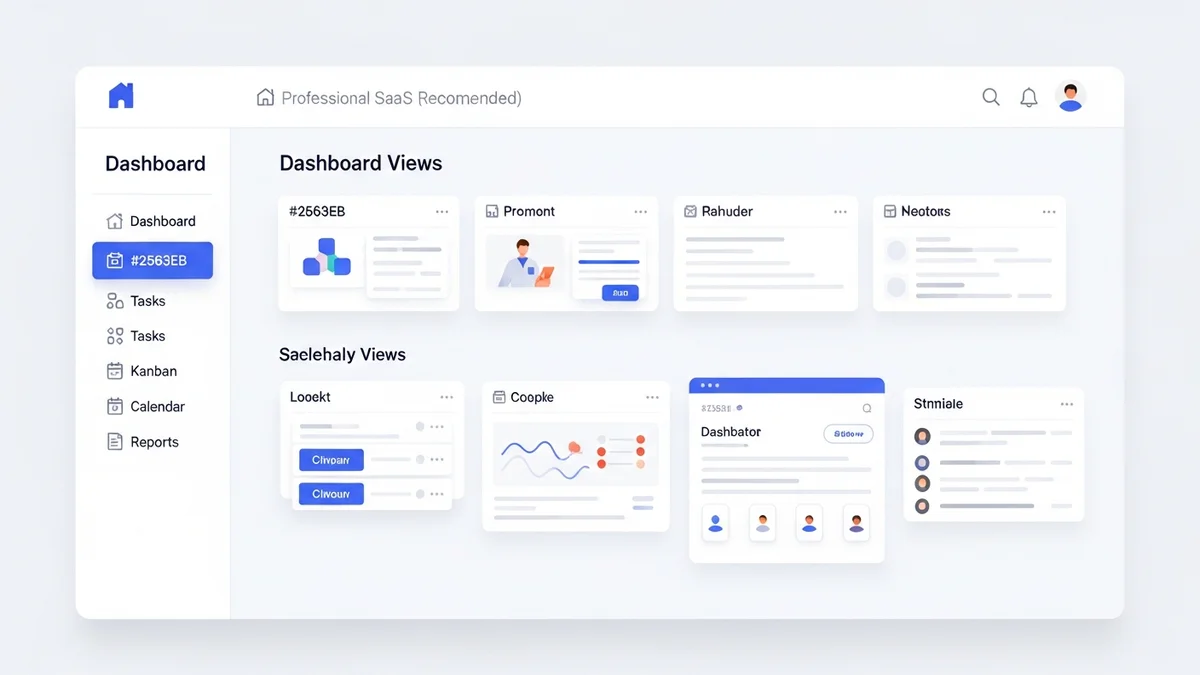
ClickUp's view system is genuinely one of its strongest differentiators. Most project tools give you a list view and a kanban board. ClickUp gives you 15+ views including Gantt, Timeline, Workload, Map, Table, Calendar, Mind Map, and Chat. Each view is a lens on the same underlying data — you're not maintaining parallel systems.
For automation teams, the most useful views are:
- Workload View — Shows capacity per team member, preventing over-assignment before it causes missed deadlines.
- Gantt View — Auto-adjusts downstream task dates when upstream tasks slip. Essential for release planning.
- Table View — Spreadsheet-style editing across multiple tasks. Fastest way to bulk-update fields or do data entry at scale.
- Dashboard View — Widgets for burndown charts, velocity, completed tasks, and time tracking summaries. Replaces standalone reporting tools for most teams.
3. Automation Engine
ClickUp's native automation builder lets you create if-then rules without writing code. Triggers include task status changes, field updates, due date arrivals, comment additions, and form submissions. Actions include assigning users, moving tasks, sending emails, creating subtasks, or calling webhooks.
For teams that need deeper cross-platform logic, ClickUp connects with Zapier, Make, and N8N for multi-step workflows that span your entire stack. A typical integration might trigger a ClickUp task from a new Stripe payment, enrich it via an API call, and notify a Slack channel — all without manual intervention.
Native automation limits by plan:
| Plan | Automations/Month | Price (per user/month) |
|---|---|---|
| Free Forever | 100 | $0 |
| Unlimited | 1,000 | $7 |
| Business | 10,000 | $12 |
| Enterprise | Unlimited | Typically $19+/user/month |
Newsletter
Get the latest SaaS reviews in your inbox
By subscribing, you agree to receive email updates. Unsubscribe any time. Privacy policy.
4. ClickUp Brain (AI Layer)
ClickUp Brain is the platform's AI assistant, and it's integrated more deeply than most competitors. It doesn't just generate text — it reads your tasks, docs, and project history to give contextual answers. Ask it "What's blocking the Q2 launch?" and it pulls from actual task data, not a generic response.
Practical use cases:
- AI Summaries — Summarize a long comment thread or doc in seconds. Useful for catching up after time off.
- Task Generation — Describe a project in plain language and Brain drafts the task breakdown.
- Autofill Custom Fields — Brain can detect and populate task metadata from descriptions.
- Docs Writing Assistant — Draft SOPs, meeting notes, or proposals from a prompt, pre-loaded with your workspace context.
Brain is included at $5/user/month as an add-on across all paid plans. For teams already paying for standalone AI writing tools, this often represents a net saving.
5. Docs and Knowledge Management
ClickUp Docs is a full-featured document editor that lives inside the same workspace as your tasks. Documents can be linked to tasks, embedded in views, and collaboratively edited in real-time. This eliminates the friction of searching Notion or Confluence for the spec that belongs to a specific task.
Document automation features include template libraries, auto-generated tables of contents, and version history. For teams managing contracts, SOPs, or onboarding documentation, ClickUp Docs reduces document generation time significantly — McKinsey data suggests up to 60–70% of task time in knowledge work involves document-related busywork that structured templates and automation can eliminate.
6. Agile and Sprint Management
For software development teams, ClickUp ships a full Agile toolkit. Sprint folders automatically move incomplete tasks to the next sprint. Velocity charts track points completed per sprint. Backlog views separate "ready for sprint" from "needs grooming" items.
Research cited by ClickUp shows developers spend only 10% of their time writing new code, with 33% going to bug fixes. That imbalance worsens without disciplined sprint hygiene. ClickUp's sprint automation — like auto-closing sprints, recalculating velocity, and promoting priority bugs to the top of the backlog — directly addresses this waste.
It also integrates with GitHub, GitLab, and Bitbucket so pull request status appears directly on the linked ClickUp task. No more checking two systems to know if a feature branch is merged.
7. Goals and OKR Tracking
ClickUp Goals lets teams set measurable objectives and link tasks as progress contributors. As tasks complete, goal progress updates automatically. This closes the gap between day-to-day execution and strategic targets — a gap that kills OKR programs in most organizations.
Goals support number targets, true/false milestones, currency values, and task-completion percentages. You can nest goals into folders to mirror department or company structure.
8. Time Tracking and Reporting
Native time tracking is available on all paid plans. Team members log time directly on tasks; managers see rollups by project, assignee, or time period. The reporting layer includes burndown charts, cumulative flow diagrams, and custom widgets.
For agencies and client-services teams, ClickUp's time tracking integrates with billing workflows — exported CSV reports or connected via webhook to invoicing tools. It's not a replacement for dedicated time-billing software like Harvest, but for internal project tracking, it's fully sufficient.
ClickUp vs. Competing Automation Platforms
| Feature | ClickUp Business ($12/user) | Monday.com Pro ($19/user) | Asana Advanced ($24.99/user) |
|---|---|---|---|
| Native Automations/Month | 10,000 | 25,000 | 25,000 |
| AI Assistant Included | Add-on ($5/user) | Included (limited) | Add-on ($10/user) |
| Built-in Docs | Yes (full editor) | Basic | No |
| Agile/Sprint Tools | Yes (native) | Limited | Yes (native) |
| Free Plan Available | Yes (unlimited users) | No | Yes (up to 10 users) |
| Goal/OKR Tracking | Yes (native) | Via add-on | Yes (native) |
Integration Ecosystem: Where ClickUp Fits in Your Stack
ClickUp connects natively to over 1,000 tools and supports custom webhooks and API access on paid plans. For business automation, the most impactful integrations are:
- CRM connections — Sync deals from Freshsales or Close into ClickUp tasks so sales-to-delivery handoffs are automatic. When a deal closes, a project kicks off.
- Workflow automation bridges — Use Make or Workato to build multi-step automations when ClickUp's native engine hits complexity limits. Make is the better choice for visual, data-transformation-heavy flows; Workato for enterprise-grade governance requirements.
- Power Automate — Teams already in the Microsoft ecosystem can pipe ClickUp events into Microsoft Power Automate flows for SharePoint, Teams, or Outlook actions.
- Developer tools — GitHub, GitLab, Slack, Figma, Loom, and Sentry all have native ClickUp integrations, making it the connective tissue for product teams.
Common Mistakes Teams Make with ClickUp
Mistake 1: Over-structuring from Day One
New teams often build elaborate Space → Folder → List hierarchies before they understand their actual workflow. A 50-person agency tried to mirror every client, project type, and department into nested folders before their first sprint — and spent three weeks on setup instead of work. Start flat: one Space, a few Lists, add structure only when absence of structure causes friction.
Mistake 2: Ignoring Custom Fields in Favor of Status Tags
Teams use Status to carry information that belongs in custom fields — labeling tasks "In Review - Finance" instead of using a Department field. This creates unbounded status lists, breaks reporting, and prevents automation triggers from working cleanly. Keep Status for workflow stage; use Custom Fields for everything else.
Mistake 3: Not Using Automations to Close Loops
The most common automation gap: tasks get marked "Done" but nothing downstream happens. No notification to the client. No next task created for QA. No field updated for billing. Every workflow has a "then what?" that should be automated. Map your end-to-end process and identify every manual hand-off — each one is an automation opportunity.
Mistake 4: Treating ClickUp Brain as a Standalone Writing Tool
Teams that use Brain only for generating text miss its most powerful function: contextual answers grounded in workspace data. Ask Brain to summarize task history before a client call, identify blockers across an active sprint, or explain why a project slipped. Its value scales with how much live data your workspace contains.
Mistake 5: Skipping the Workload View
Without workload visibility, managers assign tasks blindly and top performers get buried while others are under-utilized. The Workload view is the fastest way to surface capacity problems before they become missed deadlines. Teams that review workload weekly report significantly fewer sprint failures.
Who Should Use ClickUp — and Who Shouldn't
ClickUp is the right choice for teams that need a single platform to manage projects, documents, automations, and reporting without paying for four separate tools. It works best for product teams, agencies, marketing operations, and cross-functional teams where work spans multiple domains.
It's less ideal for teams that need a deep CRM (ClickUp's relationship management is lightweight compared to a dedicated tool), or for organizations that need heavy enterprise compliance features — in those cases, ClickUp's Enterprise plan plus a dedicated integration layer like Workato is the right architecture.
The free plan is genuinely useful for solo users and small teams — unlimited users with 100 automations per month gives real working room. Paid plans start at $7/user/month, making the Unlimited tier one of the most affordable full-featured project management options on the market.
Final Verdict
ClickUp in 2026 is the closest thing the market has to a true work operating system. Its feature depth is unmatched at its price point, and the AI layer — when used against real workspace data — delivers genuine productivity gains rather than novelty. The tradeoff is a steeper initial learning curve than simpler tools, and automation limits on lower tiers that push serious power users to the Business plan.
For business automation specifically, the formula is clear: use ClickUp's native automations for in-platform workflows, connect to Make or Zapier for cross-platform logic, and let ClickUp Brain handle the summarization and knowledge retrieval layer that currently burns hours of knowledge worker time each week.